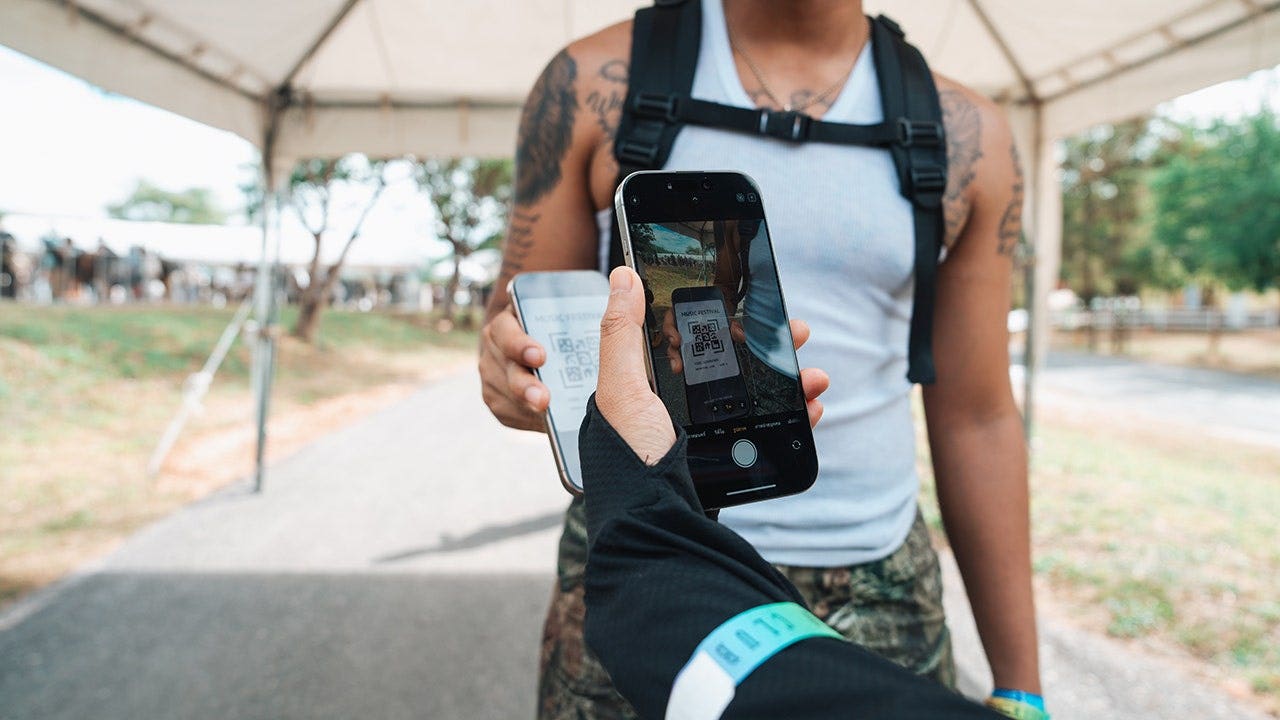
There is a good chance at least one piece of plastic in there does little more than display a barcode.
asserted
piece → be → barcode
Perhaps it is a gym membership, grocery rewards card or another card you pull out every once in a while.
asserted
you → pull → while
Until now, getting some of those cards onto an iPhone could depend on whether the organization offered its own digital pass.
uncertain
organization → get → pass
Apple is changing that with iOS 27.
asserted
Apple → change → iOS
The latest iPhone software lets you create your own pass in Apple Wallet from a physical card, photo or screenshot.
asserted
you → let → card
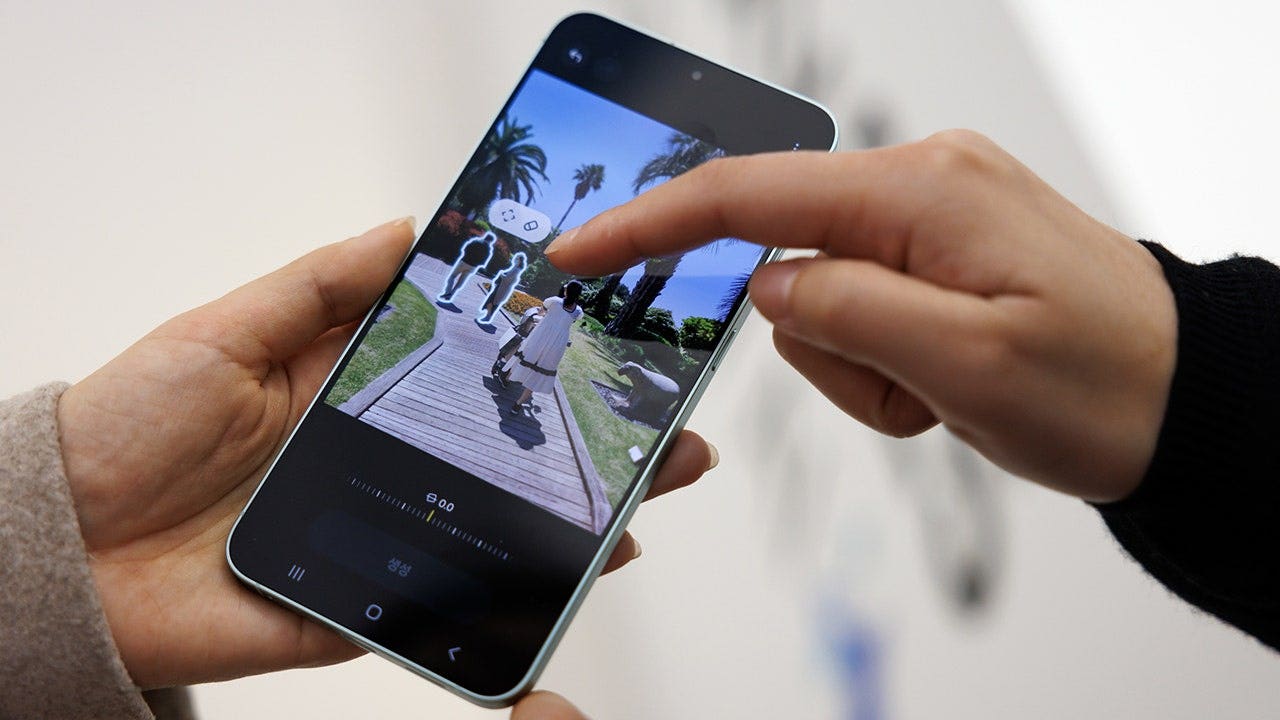
Samsung Galaxy and Google Pixel owners have similar options, which means you may be able to leave a few more plastic cards at home.
uncertain
you → have → home
Here is how to turn a membership card into a digital pass on all three phones.
asserted
turn → turn → phones
Join our upcoming CyberGuy LIVE class: 5 Ways to Travel Smarter and Save Money
In this free live online class, Kurt "CyberGuy" Knutsson will share five practical ways to protect your trip and your wallet this holiday travel season.
asserted
Knutsson → join → trip
You’ll learn how to secure your phone and personal information, find better travel deals, avoid common scams, save money on bookings and use technology to make your travels easier and less stressful.
asserted
travels → learn → technology
No technical experience is needed.
asserted
experience → need → ?
Apple added the ability to create your own passes in Wallet with iOS 27.
asserted
Apple → add → iOS
This comes in handy when a membership or loyalty card has a barcode or QR code, but the organization never gave you an "Add to Apple Wallet" button.
asserted
organization → come → button
Apple specifically points to library cards and gym memberships as examples.
asserted
Apple → point → examples
If you have an Apple Intelligence-compatible iPhone, you can create a pass from a photo or screenshot containing the barcode or QR code.
asserted
you → have → barcode
Apple Intelligence recognizes the code and can give you the option to add it to Wallet.
asserted
Intelligence → recognize → Wallet
Apple Intelligence on iOS 27 requires a supported device, including the iPhone 15 Pro, iPhone 15 Pro Max or iPhone 16 family and later compatible models.
asserted
Intelligence → require → family
Availability can also depend on your language and region.
asserted
Availability → depend → language
However, Apple also gives you a manual way to create a pass directly inside Wallet.
asserted
Apple → give → Wallet
How to create an Apple Wallet pass from a photo or screenshot
First, make sure the barcode or QR code is clearly visible.
asserted
barcode → create → photo
A blurry photo could make the code difficult for your iPhone to recognize or for a scanner to read later.
uncertain
scanner → make → ?
On a compatible iPhone, Apple Intelligence can recognize the barcode or QR code in a photo or screenshot and offer to create a Wallet pass.
asserted
Intelligence → recognize → pass
On a compatible iPhone running iOS 27 or later:
- Take a photo or screenshot that includes the barcode or QR code.
- Tap Add Pass to Wallet when the option appears.
asserted
option → run → Wallet
If you're viewing an existing photo in the Photos app, tap the Info button or swipe up to find that option.
asserted
you → view → option
Pro tip: After you create the pass, you can tap View Original Photo to see the image you used.
asserted
you → create → image
How to manually create a pass in Apple Wallet
You can also build a pass yourself in iOS 27.
asserted
You → create → iOS
This gives you another option when you want to add the information manually.
asserted
you → give → information
- Tap Create Pass Manually , then choose a template.
- Tap any field to enter or edit its information.
- When you're finished, tap Done .
asserted
you → tap → information
How to edit a pass you created in Apple Wallet
Once you've created a pass, you can customize its appearance or change the information it contains.
asserted
it → edit → information
You can also add or remove fields if you want different details displayed.
asserted
details → add → fields
- Tap the pass you want to change.
asserted
you → tap → pass
- To change which fields appear, tap the Edit button > Add or Remove Fields, then select the fields you want.
asserted
you → change → fields
- To change information already on the pass, tap the field you want to edit.
asserted
you → change → field
- When you're finished, tap Done.
asserted
you → finish → ?
How to add a membership card to Samsung Wallet
Samsung Galaxy owners already have a similar option through Samsung Wallet.
asserted
owners → add → Wallet
Samsung says almost any membership card with a barcode can be stored in the app.
asserted
card → say → app
- Choose how you want to add the card.
- Select Import from Gallery if you already photographed it, or choose Take a picture to scan its barcode or QR code.
- You can also choose the option to enter membership information manually.
asserted
You → choose → information
Samsung also supports participating memberships that are already built into Wallet.
asserted
that → support → Wallet
Once you need the card, open Samsung Wallet and select the membership.
asserted
you → need → membership
The barcode can then appear on your screen for a cashier or compatible reader to scan.
asserted
cashier → appear → screen
Menu names can vary slightly depending on your Galaxy model and Samsung Wallet version.
asserted
names → vary → model
…and 40 more, not listed.
 The Aporia